

Mobile accessibility in 2026
Phones are essential tools, but they only work if everyone can use them. As the population ages, the need for better accessibility is growing. These features aren't just for specific diagnoses; good design makes a device easier for everyone to handle.
The next generation of smartphones, specifically with the anticipated releases of iOS 20 and Android 17, promise to deliver significant advancements in mobile accessibility. These updates aren't incremental tweaks; they are shaping up to be substantial improvements driven by both user feedback and technological innovation. The focus is shifting towards more personalized and adaptive experiences, moving beyond one-size-fits-all solutions.
Currently, many people rely on built-in features like screen readers, magnification tools, and voice control. But these often require significant customization and can still present challenges in navigating complex apps or websites. The goal for 2026 is to streamline these processes, making accessibility more intuitive and seamless. We’re talking about features that proactively adapt to a user’s needs, rather than requiring constant manual adjustments.
The ADA's Small Entity Compliance Guide is pushing these updates forward. Legal requirements for state and local governments are forcing tech companies to move faster on inclusive design.
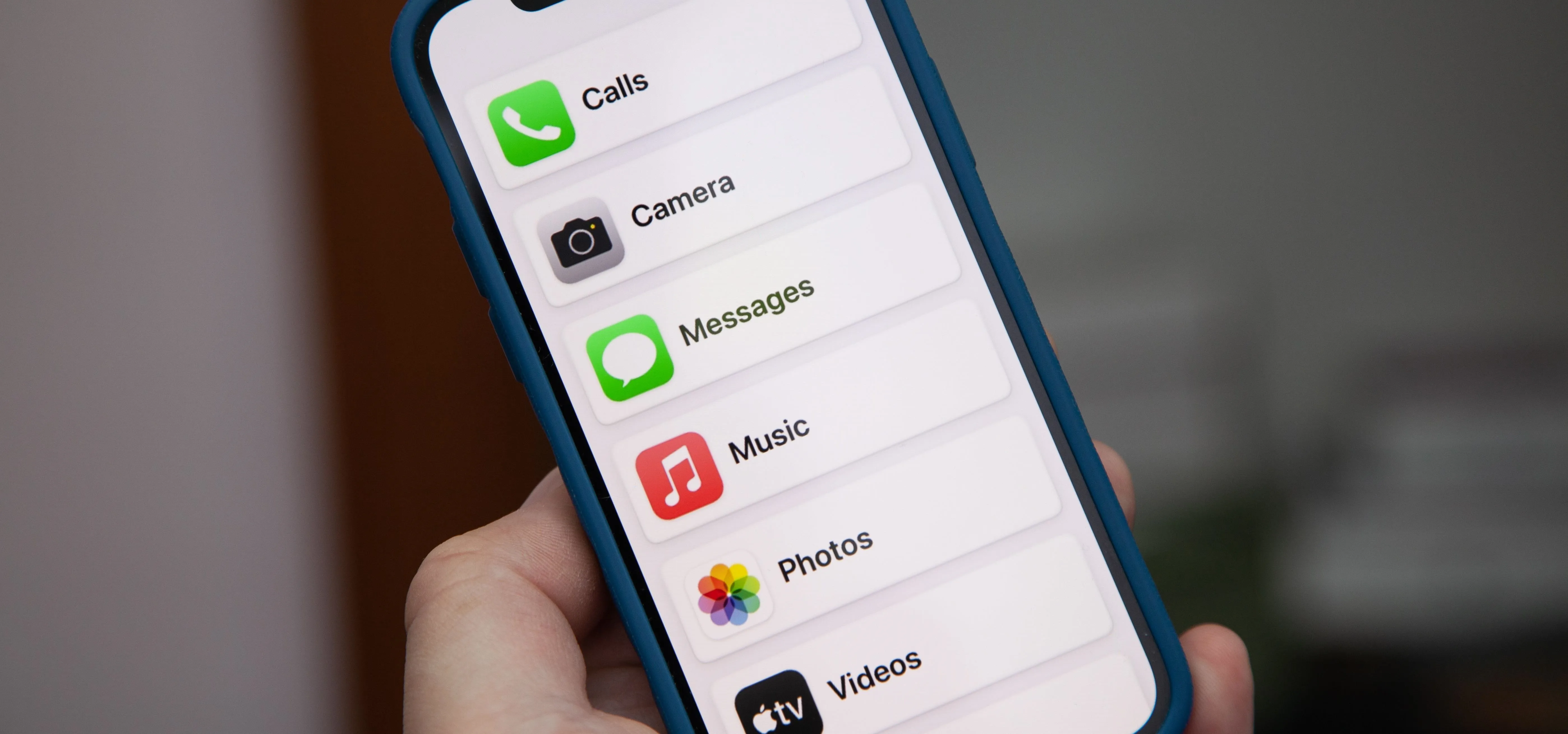
Better voice control in iOS 20
Voice Control on iOS has always been a powerful tool, but it’s historically been limited by accuracy issues and a lack of deep customization. iOS 20 is poised to address these shortcomings with a complete overhaul of the system. I’m anticipating a significant jump in speech recognition accuracy, thanks to advancements in on-device machine learning and improved noise cancellation algorithms.
The most exciting development will be the ability to create entirely custom voice commands. Imagine being able to say “Start my workout” and have iOS automatically launch your preferred fitness app, select a specific playlist, and even adjust the volume. This level of personalization will dramatically reduce the number of steps required to complete common tasks. Users will be able to assign voice triggers to complex sequences of actions within apps.
Beyond basic commands, iOS 20 is expected to offer more precise control over app interfaces. Instead of simply tapping a button, you’ll be able to use voice to interact with specific elements on the screen, like adjusting sliders or selecting items from a list. This will be particularly helpful for people with motor impairments who struggle with fine motor movements. The system will likely leverage object recognition to identify and address interface elements.
I also expect to see improved integration with third-party assistive devices, like switch controls and eye-tracking systems. This will allow users to combine the power of voice control with other input methods, creating a truly customized accessibility experience. The potential for developers to build apps that seamlessly integrate with these features is huge. The ability to trigger custom actions within apps using external devices will be a game changer.
Apple has been quietly improving its Voice Control APIs, allowing developers to build more robust voice control features into their own apps. This will create a more consistent and reliable voice control experience across the entire ecosystem.
Live captioning and translation on Android 17
Android’s Live Caption feature, introduced in Android 13, was a major step forward in accessibility for deaf and hard-of-hearing users. It automatically generates real-time captions for audio and video content, even if the app doesn’t natively support captions. Android 17 is set to expand on this functionality in significant ways.
The most notable improvement will be expanded language support. Currently, Live Caption supports a limited number of languages. Android 17 is expected to add support for dozens more, including many regional dialects. This will make the feature accessible to a far wider audience. The addition of offline language packs will be crucial for users in areas with limited internet connectivity.
Perhaps even more exciting is the potential for real-time translation. Imagine being able to have a conversation with someone who speaks a different language and see the audio translated into text on your screen in real time. This feature would be incredibly valuable for travelers, students, and anyone who interacts with people from diverse linguistic backgrounds. It would break down communication barriers in a way that was previously unimaginable.
Accuracy and responsiveness are also key areas of improvement. Android 17 will likely leverage more advanced speech recognition models and machine learning algorithms to generate captions that are more accurate and less prone to errors. The system will also be designed to keep up with fast-paced conversations and dynamic audio environments. The goal is to provide a seamless and natural captioning experience.
Dynamic display adjustments
Both iOS 20 and Android 17 are expected to introduce more sophisticated dynamic display adjustments, going beyond the basic color filters and text size options currently available. These features will be designed to personalize the visual experience to meet the specific needs of users with low vision or color blindness. The move is towards more granular controls and AI-powered assistance.
We'll likely see improvements to color filters, with more options for customizing the intensity and hue of each filter. Text size scaling will become more flexible, allowing users to adjust the text size on a per-app basis. Contrast options will also be enhanced, with the ability to automatically adjust the contrast based on the ambient lighting conditions. The aim is to reduce eye strain and improve readability.
I’m particularly interested in whether Apple and Google will offer AI-powered adjustments that learn a user’s preferences over time. For example, the system could automatically adjust the color filters and contrast settings based on the user’s viewing habits and environmental factors. This would create a truly personalized and adaptive visual experience. The AI could also suggest optimal settings based on a user’s self-reported visual impairments.
There’s also the possibility of new features like dynamic font rendering, which would adjust the shape and spacing of characters to improve readability for people with dyslexia or other reading disabilities. These kinds of subtle adjustments can make a big difference in the overall user experience.
Switch Control & Alternative Input Methods
For people with motor impairments, switch control and other alternative input methods are essential for interacting with their devices. iOS 20 and Android 17 are expected to make significant strides in improving these features, making it easier for users to access and control their smartphones. The focus is on flexibility and customization.
Improvements to switch device compatibility are a top priority. Both Apple and Google are working to ensure that their operating systems are compatible with a wider range of switch devices, including those from third-party manufacturers. This will give users more options and allow them to choose the devices that best meet their needs. Greater compatibility with Bluetooth switches seems likely.
Customizable scanning options will also be enhanced. Users will be able to adjust the scanning speed, the highlighting color, and the dwell time to optimize the scanning process for their individual abilities. The addition of predictive scanning, which anticipates the user’s selection and automatically highlights it, could significantly speed up the process. This is a feature many users have been requesting for years.
I’m also keeping an eye out for new gesture-based control schemes. These could allow users to control their devices using subtle head movements, facial expressions, or other gestures. This would provide an alternative input method for people who are unable to use traditional touchscreens or switches. The potential for AI-powered gesture recognition is particularly exciting.
LifeCourseOnline highlights several mobile apps that support people with disabilities, including apps for communication, organization, and daily living. These apps often integrate with alternative input methods, making them even more valuable for users with motor impairments.
Accessibility in First-Party Apps
Making the operating systems accessible is only half the battle. The core apps – Mail, Calendar, Maps, Camera, and others – must also be fully accessible to ensure a seamless user experience. Apple and Google are recognizing this and investing in improving the accessibility of their built-in apps.
We’re seeing improvements in screen reader compatibility, with apps being designed to provide more descriptive and informative content to screen reader users. This includes adding alt text to images, labeling buttons and controls, and providing clear instructions for completing tasks. The goal is to make these apps fully usable without requiring visual input.
Voice control integration is also being enhanced. Apps are being designed to respond to a wider range of voice commands, allowing users to complete tasks hands-free. This is particularly useful for people who are driving or otherwise unable to use their hands. Better voice control within Maps, for example, could make navigation significantly easier.
Support for alternative input methods, such as switch control, is also being improved. Apps are being designed to be navigable using switches and other assistive devices, giving users more options for interacting with their devices. I’d like to see more apps offer customizable control schemes that allow users to tailor the input method to their specific needs.
iOS 20 and Android 17 First-Party App Accessibility Comparison (2026)
| App | iOS 20 Accessibility | Android 17 Accessibility | Overall Accessibility |
|---|---|---|---|
| Strong VoiceOver integration; customizable text sizes and display options; improved dictation accuracy. | Robust TalkBack support; adjustable font sizes and contrast themes; integration with third-party accessibility services. | High | |
| Calendar | Enhanced VoiceOver navigation of event details; natural language event creation via Siri; improved color-coding options. | TalkBack compatibility with detailed event information; customizable notification schemes; better integration with accessibility suites. | High |
| Maps | Detailed VoiceOver descriptions of routes and points of interest; improved pedestrian navigation guidance; customizable map styles for visual clarity. | TalkBack support for route guidance and POI information; alternative route options with accessibility considerations; live view accessibility improvements. | Better for Route Detail |
| Camera | VoiceOver feedback during framing and capture; improved object recognition for scene descriptions; adjustable flash controls. | TalkBack integration for camera settings and capture; audio descriptions of scenes; enhanced image stabilization for users with motor impairments. | Trade-off - iOS focuses on scene description, Android on control |
| Clock | Enhanced VoiceOver support for alarms and timers; customizable haptic feedback for alerts; improved visual clarity of clock faces. | TalkBack compatibility with alarms, timers, and world clocks; customizable vibration patterns; simplified interface options. | Medium |
| Photos | VoiceOver support for image descriptions and album organization; improved facial recognition accessibility; enhanced zoom functionality. | TalkBack integration for image viewing and organization; improved metadata accessibility; better support for image editing tools. | High |
Qualitative comparison based on the article research brief. Confirm current product details in the official docs before making implementation choices.
Tools for third-party developers
The success of mobile accessibility ultimately depends on third-party developers. If apps aren’t accessible, then a large segment of the population will be excluded from using them. Apple and Google are providing developers with a range of tools and resources to help them create more accessible apps. The question is whether these efforts are enough.
Accessibility APIs are the foundation of accessible app development. These APIs allow developers to expose the underlying structure and content of their apps to assistive technologies, like screen readers. Apple and Google are constantly updating and improving these APIs to provide developers with more powerful and flexible tools. Better documentation and more code samples are always needed.
Testing tools are also essential. Both Apple and Google provide developers with tools for testing the accessibility of their apps. These tools can identify common accessibility issues, such as missing alt text or insufficient color contrast. Automated testing is becoming increasingly important.
I'm curious to see if Apple and Google will offer more incentives for developers to prioritize accessibility. This could include things like featuring accessible apps in the App Store and Google Play Store, or providing financial grants to developers who create innovative accessibility solutions. Instagram has been compiling lists of useful accessibility apps, which is a good start.



No comments yet. Be the first to share your thoughts!