

Vision Pro accessibility at a glance
Apple built accessibility into the Vision Pro from the start rather than treating it as a software patch. While most reviews focus on movie watching or virtual monitors, the hardware is actually a specialized tool for navigating the world with limited mobility or vision.
Apple is highlighting several key accessibility features, including robust Voice Control, highly customizable Zoom capabilities, and comprehensive Switch Control options. These are familiar features to many Apple users, but their implementation within a spatial computing environment presents both opportunities and challenges. Beyond these, Apple is also emphasizing features like Live Captions and Sound Recognition, expanding the ways people can engage with content.
The transition to spatial computing changes how standard tools like Voice Control and Zoom behave. We need to look at how these translate to a 3D environment where your eyes and hands are the primary controllers.
Voice control in 3D space
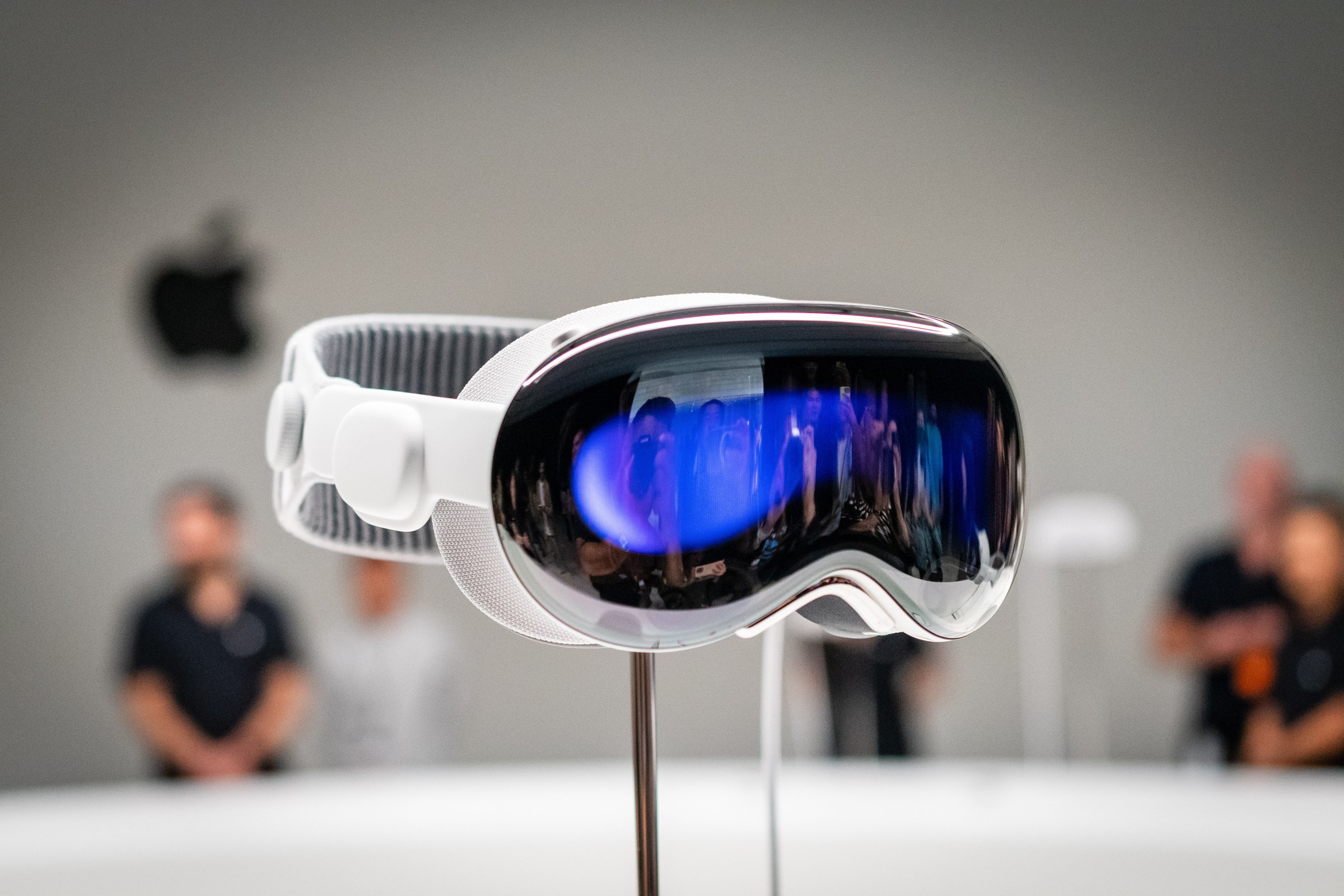
Voice Control on the Apple Vision Pro isn't simply a port of the existing iPhone and iPad functionality. It’s been reimagined to work within the spatial computing interface. Instead of tapping on a screen, you’re verbally selecting elements in 3D space. This requires a different approach to command recognition and execution. Apple’s documentation emphasizes the ability to control the entire system with your voice, from launching apps to navigating menus and interacting with content.
The key difference lies in how Voice Control interacts with gestures. While Siri excels at responding to general requests, Voice Control is designed for precise, granular control. You can say things like "Open Safari’ or ‘Move this window to the left" and the system should respond accordingly. Apple also provides extensive customization options, allowing users to create custom voice commands and shortcuts. This is a huge benefit for individuals with motor impairments.
I’m particularly interested in whether existing custom voice command sets created on macOS or iOS can be imported or adapted for use with visionOS. While there’s no official word on this yet, it would be a significant time-saver for users who have already invested in personalizing their voice control experience. The ability to tailor commands to specific apps and workflows will be a defining feature of a mature Voice Control implementation.
Visual Adjustments & Zoom Capabilities
Apple has always been a leader in visual accessibility, and the Vision Pro continues this trend. The device offers a wide range of visual adjustments, including dynamic type size, bold text, increased contrast, color filters, and reduce motion. These features are all familiar to Apple users, but the spatial display introduces new possibilities for customization. The level of granular control is impressive.
The spatial display fundamentally changes how zoom functionality works. Unlike traditional screens where zooming simply magnifies the entire view, the Vision Pro allows users to zoom into specific areas without distorting the rest of the scene. This is particularly useful for individuals with low vision who need to focus on details without losing context. Apple is also including magnification filters, allowing users to adjust the color and contrast of magnified areas.
What’s also noteworthy is the ability to customize the zoom level and speed. This allows users to find a comfortable viewing experience that suits their individual needs. Apple’s support documentation details how to adjust these settings, and it’s clear they’ve put a lot of thought into making the Vision Pro accessible to people with a wide range of visual impairments.
- Dynamic type for system-wide text scaling
- Bold text to help with legibility against transparent backgrounds
- Increased Contrast: Enhance the difference between text and background.
- Color Filters: Adjust colors to accommodate color blindness or other visual sensitivities.
- Reduce Motion: Minimize animations and transitions to reduce eye strain.
Switch Control & Alternative Input Methods
Switch Control is a powerful accessibility feature that allows users to control their devices using a variety of assistive switches. Translating this to a spatial computing environment presents unique challenges, but Apple appears to have made significant progress. The Vision Pro supports a wide range of switch devices, and users can create custom scanning patterns to navigate the interface.
The documentation details how to configure Switch Control to work with different switch types, including external buttons, head tracking, and even eye tracking (though the specifics of eye tracking integration are still emerging). The ability to create custom scanning patterns is crucial, as it allows users to tailor the control scheme to their individual abilities and preferences.
I’m particularly curious about integration with external assistive devices beyond Apple’s own offerings. Can users connect third-party switches and adaptors? What about compatibility with specialized input devices designed for individuals with severe motor impairments? Head tracking as an input method seems promising, offering a hands-free way to navigate the interface.
Accessibility in visionOS Apps: Developer Tools
The accessibility of the Vision Pro ecosystem ultimately depends on developers proactively building accessibility into their apps. Apple is providing a suite of tools and APIs to help developers achieve this. The developer.apple.com documentation is the central resource for this information, detailing how to support Voice Control, Switch Control, and other accessibility features.
Apple is emphasizing the importance of using semantic markup and providing alternative text for images and other non-text elements. These are fundamental accessibility best practices, but they’re even more critical in a spatial computing environment where users may be interacting with content in new and unexpected ways. The documentation also covers accessibility testing frameworks and guidelines.
It’s crucial that developers view accessibility not as an afterthought, but as an integral part of the design process. Building accessibility into apps from the beginning is far more efficient and effective than trying to retrofit it later. Apple’s commitment to providing robust developer tools is a positive step, but the ultimate success of accessibility on the Vision Pro will depend on the willingness of developers to embrace these tools and prioritize inclusivity.
Basic Accessibility Implementation for visionOS Apps
When developing applications for Apple Vision Pro that serve users with disabilities, implementing proper accessibility labels is crucial for screen reader compatibility and voice navigation. The following example demonstrates fundamental accessibility practices using SwiftUI modifiers that work across Apple's platforms, including visionOS.
import SwiftUI

struct AccessibleVisionView: View {
    var body: some View {
        VStack {
            Button("Navigate Menu") {
                // Button action
            }
            .accessibilityLabel("Main navigation menu")
            .accessibilityHint("Double tap to open the main menu options")

            Image("productImage")
                .accessibilityLabel("Product demonstration")
                .accessibilityHint("Shows the latest assistive technology device")

            Text("Welcome to Assistive Technology Hub")
                .accessibilityAddTraits(.isHeader)
                .accessibilityLabel("Welcome to Assistive Technology Hub, main heading")
        }
        .accessibilityElement(children: .contain)
    }
}
This implementation ensures that assistive technologies can properly interpret and announce UI elements to users. The accessibilityLabel modifier provides clear descriptions, while accessibilityHint offers additional context about element functionality. The accessibilityAddTraits modifier helps screen readers understand the semantic importance of text elements, and accessibilityElement with the contain parameter ensures proper navigation hierarchy for complex views.
Spatial Audio & Hearing Accessibility
Spatial audio is a key feature of the Apple Vision Pro, and it has the potential to significantly enhance accessibility for individuals with hearing impairments. The ability to customize the direction and intensity of sounds can help users localize audio cues and improve their understanding of the spatial environment. Apple is allowing users to personalize their audio experience.
Features to help users with unilateral hearing loss are particularly important. By directing sound to the better-hearing ear, the Vision Pro can improve sound clarity and reduce listening fatigue. Integration with Made for iPhone hearing aids is also a crucial consideration, ensuring that users can seamlessly connect their existing hearing devices.
The handling of audio descriptions is another key aspect of hearing accessibility. Apple needs to ensure that audio descriptions are readily available for all content and that they can be easily customized to meet individual preferences. Support for multiple audio description tracks would be a significant benefit.
Integration with Assistive Technology Ecosystems
One of the biggest unknowns surrounding the Apple Vision Pro is how well it will integrate with existing assistive technology ecosystems. Will it play nicely with screen readers like VoiceOver on other devices? Can users connect external keyboards and mice? What about compatibility with braille displays? These are critical questions for individuals who rely on assistive technology to access digital content.
I'm not sure if Apple will open the visionOS Bluetooth stack to third-party switches. Historically, they've kept a tight grip on MFi (Made for iPhone) certifications, but a headset that relies on eye-tracking almost demands support for specialized physical pointers.
Compatibility with braille displays is another key consideration. While the Vision Pro’s visual accessibility features are impressive, some users may still prefer to access content through braille. Apple needs to provide a robust API that allows braille displays to seamlessly integrate with the Vision Pro’s operating system. Workarounds may be necessary, and the level of support remains to be seen.
Assistive Technology Compatibility with Apple Vision Pro (as of late 2023/early 2024)
| Assistive Technology Category | Specific Technology Example | Level of Support | Notes |
|---|---|---|---|
| Screen Readers | JAWS | No Support | Currently, direct compatibility with JAWS is not reported. Users may need to explore alternative solutions or await potential future updates. |
| Screen Readers | NVDA | No Support | Similar to JAWS, NVDA does not have confirmed direct support for Apple Vision Pro at this time. |
| Screen Readers | VoiceOver (Apple) | Full Support | Apple's built-in VoiceOver screen reader is fully integrated and optimized for the Vision Pro experience, offering comprehensive accessibility features. |
| Keyboards | Bluetooth Keyboards | Full Support | Apple Vision Pro supports standard Bluetooth keyboard connections for text input and navigation. |
| Keyboards | One-Handed Keyboards | Partial Support | While Bluetooth connectivity allows for the use of one-handed keyboards, specific optimization for the Vision Pro interface is currently limited. Functionality will depend on the keyboard's compatibility with standard Bluetooth profiles. |
| Mice | Bluetooth Mice | Partial Support | Bluetooth mouse support is available, but the spatial computing environment of Vision Pro may not fully replicate traditional mouse-driven interactions. Navigation will likely require adaptation. |
| Braille Displays | Bluetooth HID Braille Displays | Unknown | Compatibility with Bluetooth HID braille displays is currently unconfirmed and requires further testing and user reports. Apple documentation does not currently detail this support. |
| Speech-to-Text | Apple Dictation | Full Support | Apple’s built-in dictation functionality is available and integrated within the Vision Pro operating system. |
Illustrative comparison based on the article research brief. Verify current pricing, limits, and product details in the official docs before relying on it.



No comments yet. Be the first to share your thoughts!