
How AI shapes assistive technology in 2026
Assistive technology has moved past simple amplification and basic text-to-speech. In 2026, the integration of artificial intelligence has transformed these tools from reactive devices into proactive partners. Screen readers no longer just read what is on the screen; they interpret context, summarize complex layouts, and anticipate user needs.
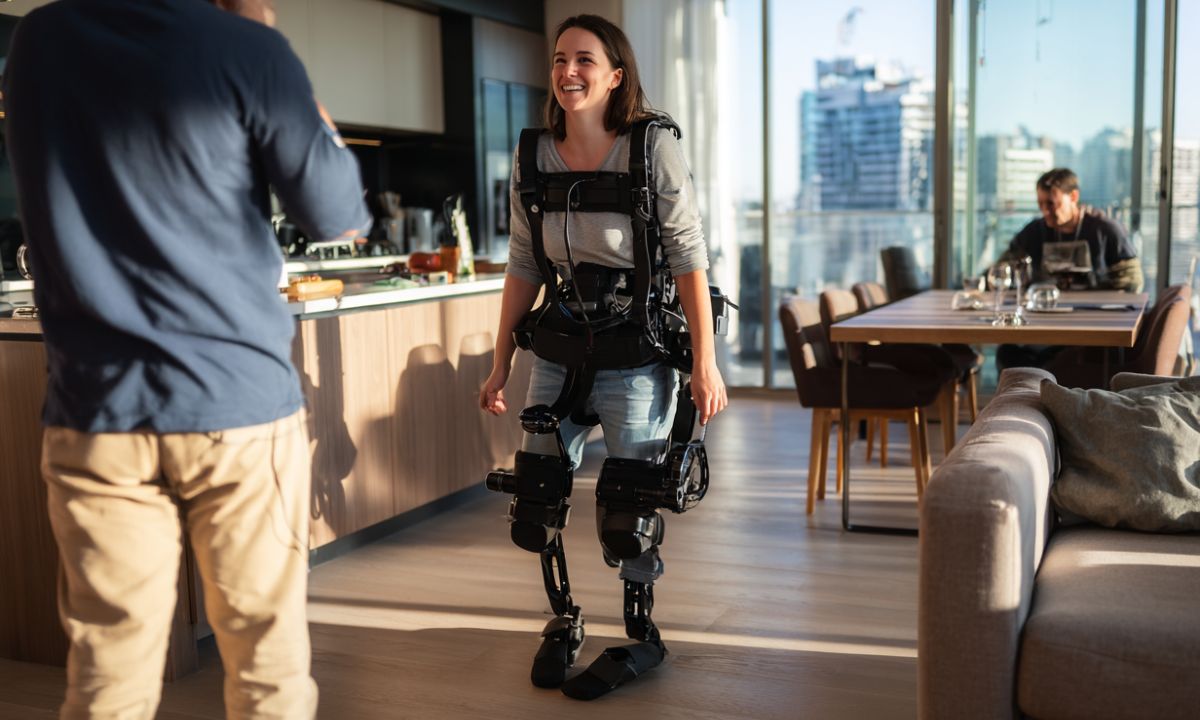
This shift is particularly evident in adaptive hardware. Modern devices use machine learning to adapt to individual motor skills and visual preferences in real time. For example, eye-tracking software now distinguishes between intentional gaze and accidental glances, while voice assistants understand natural language commands with far fewer errors.
The result is a more intuitive digital experience. Users spend less time navigating menus and more time accessing content. This change reduces cognitive load and physical strain, making technology accessible to a broader range of abilities.
As we explore the best products of 2026, you will see how these technologies are embedded into everyday devices. The following sections highlight specific screen readers and adaptive hardware that leverage these advancements to improve daily life.
Top screen readers for 2026
Screen readers remain the primary interface for navigating digital content when vision is impaired. In 2026, the market has matured beyond basic text-to-speech engines into comprehensive accessibility suites that handle complex web layouts, dynamic applications, and native mobile environments. Choosing the right tool depends less on raw speed and more on how well the software interprets modern user interfaces and integrates with your existing hardware.
JAWS (Job Access With Speech)
JAWS continues to be the industry standard for Windows-based workflows, particularly in corporate and educational settings where legacy enterprise software requires strict accessibility compliance. Its strength lies in its deep customization options and extensive support for Microsoft Office applications. Users can create custom profiles that adjust reading speeds, voice accents, and keyboard shortcuts to match their specific cognitive and physical needs. While the learning curve is steeper than newer competitors, the depth of control it offers makes it indispensable for power users who rely on complex desktop environments.
NVDA (NonVisual Desktop Access)
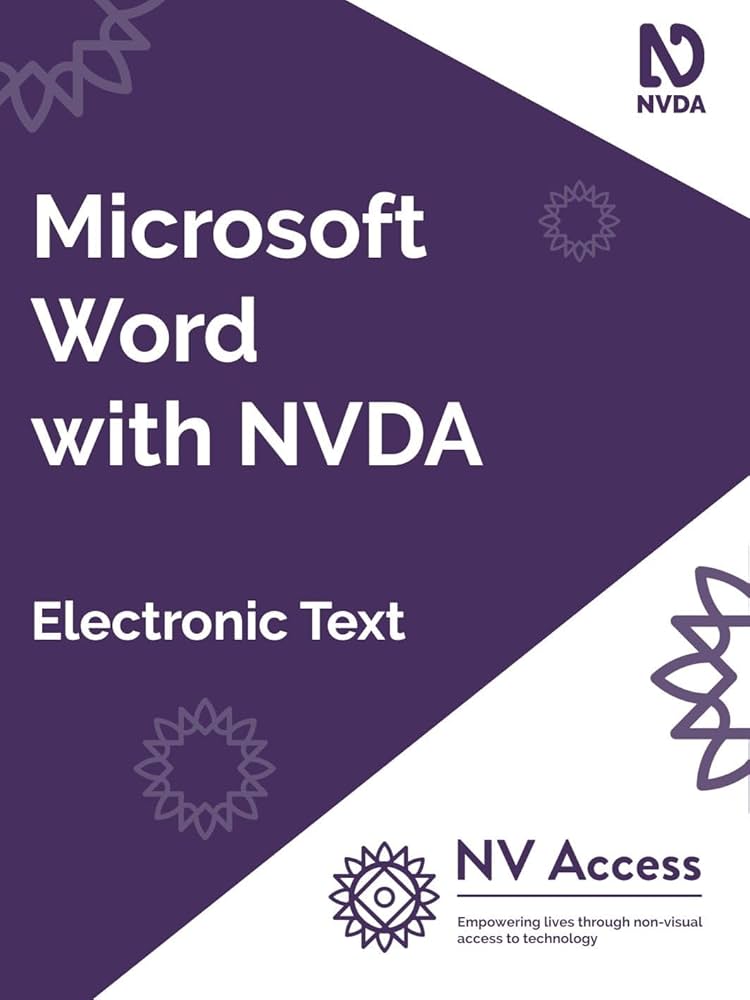
NVDA is the leading open-source screen reader, offering a robust, free alternative that rivals paid solutions in functionality. It is particularly popular among students and individual users who need a high-quality experience without licensing fees. NVDA supports a wide range of languages and has a vibrant community that regularly updates plugins for emerging web technologies. Its lightweight nature means it runs smoothly on older hardware, making it an excellent choice for users who prioritize efficiency and cost-effectiveness over proprietary support channels.
VoiceOver
Pre-installed on all Apple devices, VoiceOver provides a seamless, integrated experience for users within the Apple ecosystem. Because it is built directly into macOS, iOS, and iPadOS, it offers unparalleled consistency across devices, allowing users to switch from a MacBook to an iPhone without relearning navigation patterns. Apple’s focus on privacy and security means VoiceOver operates with minimal system overhead and no external data collection. For users who already own Apple hardware, VoiceOver eliminates the need for additional software purchases and ensures that every app on the device is accessible out of the box.
TalkBack
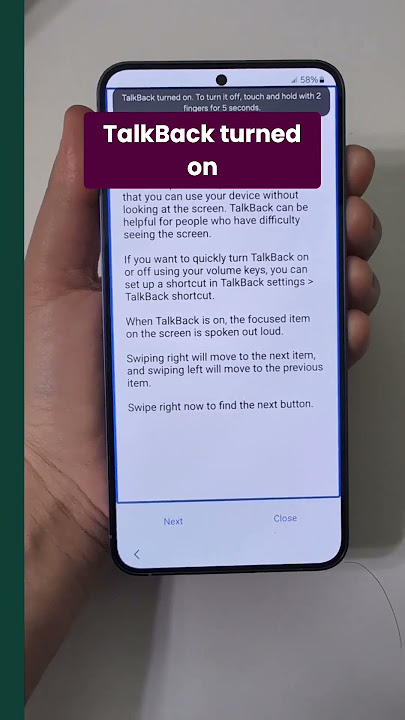
TalkBack is Google’s built-in screen reader for Android devices, designed to make mobile interfaces accessible to visually impaired users. It has improved significantly in recent years, offering gesture-based navigation that feels intuitive once mastered. TalkBack excels in handling popular Android apps and integrates well with Google Assistant for voice commands. While it lacks the deep customization of JAWS or NVDA, its simplicity and universal availability on Android phones and tablets make it the default choice for millions of mobile users who need reliable, on-the-go access to communication and productivity tools.

As an Amazon Associate, we may earn from qualifying purchases.
Adaptive input devices and hardware
Physical input devices bridge the gap between intent and action for users with limited motor control, tremors, or fine motor impairments. While screen readers handle the visual layer, adaptive keyboards, specialized mice, and eye-tracking systems manage the tactile and spatial interaction with a computer. These tools transform standard computing peripherals into accessible instruments, allowing users to type, navigate, and click with precision regardless of their physical limitations.
The market has shifted from bulky, clinical-looking hardware to sleek, ergonomic designs that blend into any workspace. Modern adaptive devices often feature programmable macros, reduced key travel, or alternative input methods like sip-and-puff or head-tracking. Choosing the right hardware depends on the specific motor challenges the user faces, whether it is tremor stabilization, limited range of motion, or the need for hands-free operation.
Adaptive Keyboards and Keyguards
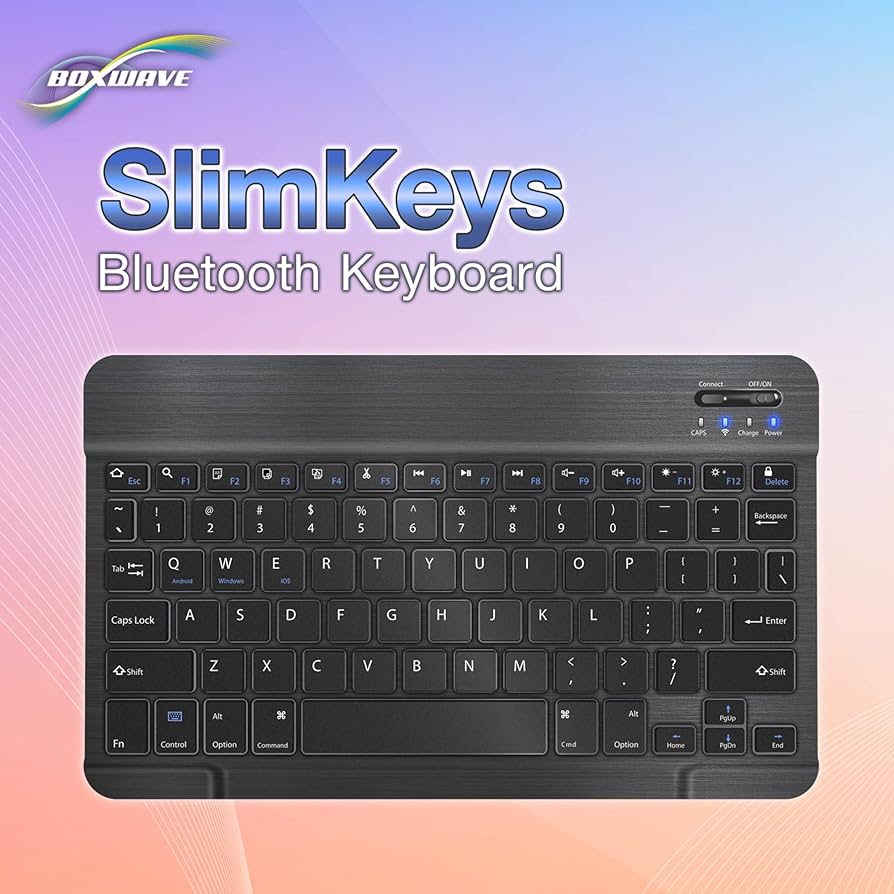
Standard keyboards can be difficult for users with arthritis, tremors, or limited finger dexterity. Adaptive keyboards address this by reducing the number of keys, increasing key size, or offering customizable layouts. Keyguards—plastic grids that sit over the keyboard—prevent accidental key presses, ensuring that only the intended key is activated. This is particularly helpful for users with tremors or those who may strike multiple keys simultaneously.
Some adaptive keyboards are split or curved to reduce wrist strain, while others are single-handed or trackball-integrated for users with limited mobility in one arm. These devices often connect via USB or Bluetooth, making them compatible with most modern operating systems. When selecting an adaptive keyboard, consider the user’s specific motor needs and whether a full-sized or compact layout is more manageable.
Specialized Mice and Trackballs
Traditional mice require precise wrist and finger movements that can be challenging or impossible for some users. Specialized mice and trackballs offer alternative ways to control the cursor. Trackballs, for example, allow users to move the cursor by rolling a ball with their thumb or fingers, keeping the hand stationary. This reduces strain on the wrist and shoulder, making them ideal for users with repetitive strain injuries or limited mobility.
Other options include large-track mice, vertical mice, and touchpads designed for users with limited hand strength. Some devices feature adjustable sensitivity, allowing users to fine-tune the cursor speed to match their control level. These tools provide a more natural and less fatiguing way to interact with the desktop environment.
Eye-Tracking and Head-Mounted Devices
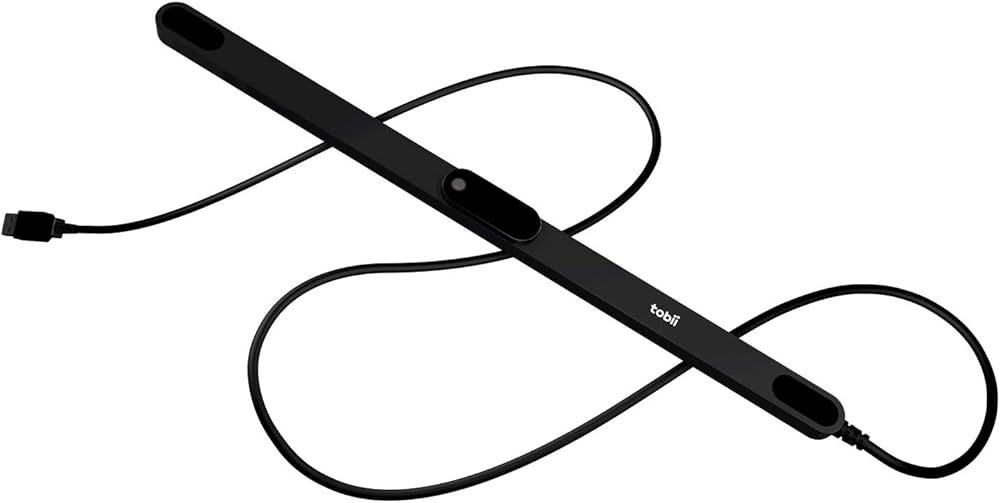
For users with severe motor impairments, such as those with ALS or spinal cord injuries, eye-tracking technology offers a hands-free way to interact with a computer. Eye-trackers use infrared cameras to detect where the user is looking, allowing them to click, type, and scroll using only their eye movements. This technology has become more affordable and accurate in recent years, opening up computing access to a wider range of users.
Head-mounted devices, such as head mice or sip-and-puff systems, provide another alternative. Head mice track head movements to control the cursor, while sip-and-puff systems use air pressure to simulate clicks and key presses. These devices are often used in conjunction with screen readers to provide a complete accessible computing experience.


As an Amazon Associate, we may earn from qualifying purchases.
| Device Type | Best For | Connectivity |
|---|---|---|
| Adaptive Keyboard | Tremors, arthritis, limited dexterity | USB/Bluetooth |
| Trackball Mouse | Wrist strain, limited hand mobility | USB/Bluetooth |
| Eye Tracker | Severe motor impairments, ALS | USB |
Choosing assistive technology for your needs
Selecting the right assistive technology starts with matching the tool to your specific disability and daily use cases. Assistive technology (AT) encompasses any device or software that helps people with differences work around challenges, making tasks accessible at school, work, and home Understood.org.
For screen reader users, the priority is software compatibility and voice customization. Windows users often rely on built-in tools like Narrator, while Mac users benefit from VoiceOver. For more advanced needs, dedicated software like JAWS or NVDA offers deeper control over browsing and document navigation.
Adaptive hardware addresses physical access barriers. Switch devices allow users with limited mobility to control computers via a single button or sip-and-puff system. Trackballs and vertical mice reduce strain for those with arthritis or repetitive strain injuries. Eye-tracking software enables navigation and typing for users with severe motor impairments.
Consider your environment when choosing. A tool that works perfectly in a quiet home office might be overwhelming in a noisy classroom. Look for devices that are portable, durable, and have good customer support. Testing before buying is ideal; many retailers offer return policies if the technology doesn't fit your workflow.


As an Amazon Associate, we may earn from qualifying purchases.
Frequently asked questions about assistive technology
How much do screen readers and adaptive devices cost?
Prices vary widely depending on the complexity of the device. Basic screen readers may be free or included with an operating system, while specialized hardware like refreshable Braille displays or eye-tracking systems can cost thousands. Many manufacturers offer student or non-profit discounts, so it is worth checking the vendor's website directly before purchasing.
Will insurance or Medicaid cover assistive technology?
Coverage depends on your specific plan and the medical necessity of the device. Medicaid often covers durable medical equipment through state waivers, while private insurance may require a letter of medical necessity from a doctor. The State Grant for Assistive Technology Program also helps make devices more accessible for eligible individuals who do not have comprehensive coverage.
Can I use these devices with my current computer or phone?
Most modern assistive technologies are designed to integrate seamlessly with existing devices. Screen readers like NVDA or JAWS work with Windows, while VoiceOver is built into macOS and iOS. When buying adaptive hardware, check the compatibility list on the manufacturer’s page to ensure it supports your operating system and specific models.
Where can I try assistive technology before buying?
Many communities have AT Centers or libraries that lend devices for trial periods. This allows you to test how a screen reader or adaptive switch feels in your daily workflow before committing to a purchase. You can also look for demo videos on YouTube to see the technology in action, though nothing replaces hands-on testing.
No comments yet. Be the first to share your thoughts!