
What assistive technology covers today
Assistive technology is the bridge between physical limitation and daily independence. The World Health Organization defines it as an umbrella term for assistive products and their related systems and services. These tools help maintain or improve an individual’s functioning and well-being. The Assistive Technology Industry Association (ATIA) broadens this definition to include any item, piece of equipment, software program, or product system used to increase, maintain, or improve functional capabilities.
While the scope is vast, this roundup focuses on the three primary hardware and software categories that deliver the most immediate utility: mobility aids, communication devices, and environmental control systems. We evaluate concrete products in these areas, prioritizing real-world performance over abstract features. The goal is to identify tools that seamlessly integrate into daily routines, allowing users to navigate their environments with greater autonomy and confidence.
Top screen readers for visual needs
Screen readers are essential assistive technology that convert digital text into speech or braille, allowing users with visual impairments to navigate computers and mobile devices independently. Choosing the right software depends on your operating system, budget, and specific accessibility requirements. Below are the most widely used options available for purchase or download.
JAWS (Job Access With Speech)
JAWS is the industry standard for Windows users, particularly in enterprise and educational environments. It offers deep integration with Microsoft Office and complex web applications, making it a powerful tool for professionals who rely on detailed keyboard shortcuts. While it requires a paid license, its robust support for legacy software and extensive customization options make it a reliable choice for heavy desktop users.
NVDA (NonVisual Desktop Access)
NVDA is a free, open-source screen reader for Windows that has gained significant popularity for its versatility and community-driven development. It supports a wide range of applications and websites, offering many of the features found in paid competitors without the cost. NVDA is an excellent entry point for individuals seeking accessible assistive technology on a budget, with regular updates ensuring compatibility with modern web standards.
VoiceOver
VoiceOver is built directly into Apple’s ecosystem, including macOS, iOS, iPadOS, and watchOS. Because it is integrated at the system level, it provides a seamless experience across all Apple devices, with consistent gestures and navigation patterns. Users benefit from tight hardware-software integration, which often results in smoother performance and better battery life compared to third-party screen readers on Apple platforms.
TalkBack
TalkBack is Android’s native screen reader, designed to make mobile devices accessible to users with visual impairments. It offers gesture-based navigation and supports a wide variety of apps, including popular social media and banking applications. As Android dominates the global mobile market, TalkBack ensures that a large portion of the population can access essential digital services without needing additional software.
Refreshable Braille Displays
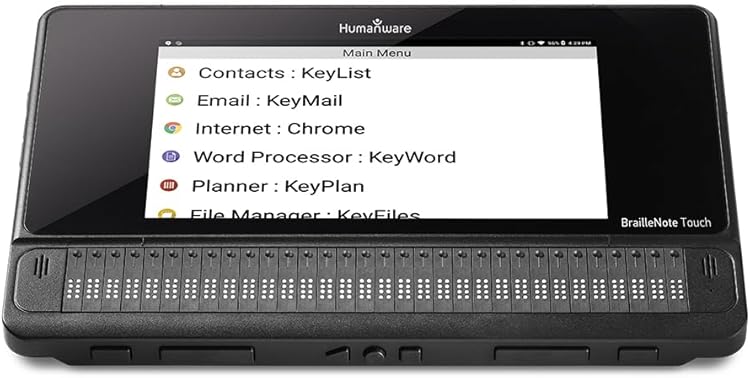
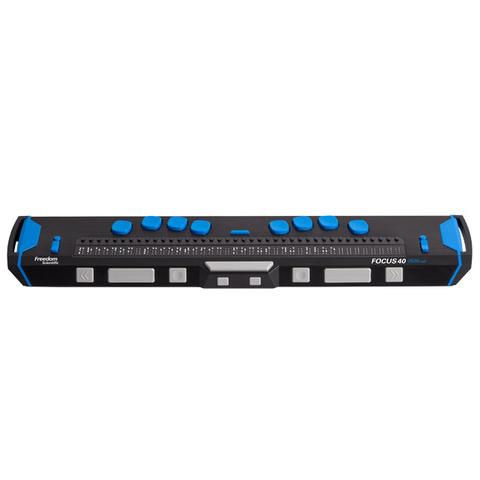
For users who rely on tactile feedback, refreshable braille displays connect via USB or Bluetooth to sync with screen readers. These devices translate on-screen text into dynamic braille cells, providing a more precise reading experience for technical documents or coding. They are often used in conjunction with JAWS or NVDA on Windows, or VoiceOver on Mac, to enhance accuracy and speed.
As an Amazon Associate, we may earn from qualifying purchases.
One-handed keyboards for limited mobility
Standard QWERTY layouts demand two hands and precise finger isolation, which can be exhausting or impossible for users with limited hand mobility. Assistive technology in this category focuses on single-hand operation, reducing the physical strain of typing while maintaining speed and accuracy. These solutions range from compact physical hardware to adaptive software layouts that reorganize keys for ergonomic reach.
The Kinesis Freestyle Edge RGB is a split mechanical keyboard that allows users to separate the halves and operate one side independently. Its low-profile mechanical switches require less actuation force than traditional switches, making it easier for users with reduced grip strength. The device includes programmable macros and a dedicated gaming mode, but its true value lies in the ability to disable the left half entirely, turning it into a dedicated right-handed keyboard without losing the ergonomic benefits of the split design.
For users who prefer a more traditional form factor, the Matias Ergo Pro offers a split layout with a tenting mechanism that aligns the wrists naturally. While designed for two-handed use, the layout is intuitive enough that users with limited mobility can adapt to using only the right side. The low-profile membrane keys are quiet and require minimal pressure, reducing fatigue during long typing sessions. This keyboard is particularly useful for office environments where noise and desk space are concerns.
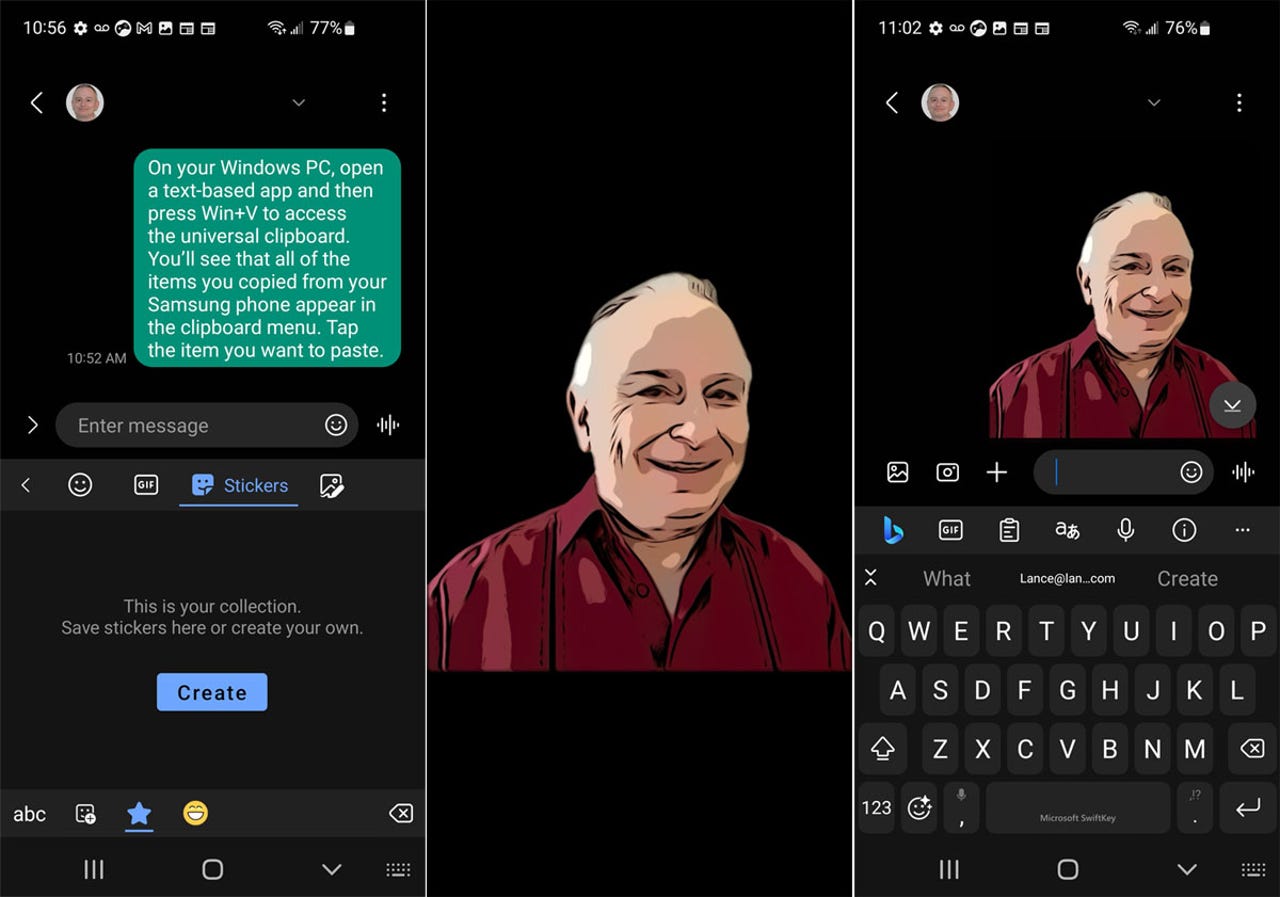
Virtual keyboard solutions provide flexibility for users who cannot commit to dedicated hardware. The Microsoft SwiftKey Keyboard on Windows and iOS allows users to create custom layouts and use predictive text to reduce the number of keystrokes needed. By learning the user's writing style, SwiftKey can predict entire words or phrases, significantly lowering the physical effort required for typing. This is especially helpful for users who type with a single finger or use alternative input methods like eye-tracking or head mice.
The Gboard app on Android and iOS also offers robust predictive text and voice-to-text features that complement single-hand typing. Users can switch between the standard keyboard and a smaller, more compact layout that fits within the thumb's natural reach. Gboard’s integration with Google’s language models ensures high accuracy, making it a reliable assistive technology tool for everyday communication.


As an Amazon Associate, we may earn from qualifying purchases.
Speech-to-text software for hands-free control
Speech recognition tools have evolved from novelty items into essential components of assistive technology for users who need hands-free computer control or faster dictation. These programs translate spoken words into text and allow users to navigate menus, click buttons, and manage files using only their voice. For individuals with mobility impairments, repetitive strain injuries, or visual disabilities, this capability provides a critical layer of digital independence.
Modern engines rely on deep learning models trained on vast datasets of human speech, allowing them to handle accents, background noise, and technical terminology with increasing precision. The best tools integrate directly with operating systems like Windows, macOS, and iOS, ensuring that the voice command layer works across all applications, from word processors to web browsers. This deep integration is what separates dedicated assistive technology from simple voice-to-text widgets found in social media apps.
When evaluating speech-to-text software, the primary metrics are accuracy under real-world conditions, latency (the delay between speaking and action), and the breadth of supported commands. Some tools excel at rapid dictation for writers, while others prioritize complex system navigation for users who cannot use a mouse or keyboard. The following comparison highlights three leading options that balance these needs for different user profiles.
| Tool | Primary Platform | Accuracy Focus | Cost Model |
|---|---|---|---|
| Dragon Professional | Windows | High (customizable profiles) | One-time purchase |
| Apple Voice Control | iOS/macOS | High (native integration) | Free (built-in) |
| Google Voice Access | Android | Medium-High (context-aware) | Free (built-in) |
| Nuance Dictate | Cross-platform | Medium (cloud-based) | Subscription |
How to choose the right assistive technology
Selecting the right assistive technology is less about finding the most advanced gadget and more about ensuring it fits your daily workflow. The goal is to facilitate success and independence, whether you are navigating a computer interface or managing physical tasks. A mismatched tool can create more friction than it solves, so a structured evaluation process is essential.
1. Identify the specific barrier
Start by isolating the exact task that feels difficult. Is it reading small text, navigating with a mouse, or managing hearing aids? Narrowing the scope helps you focus on products designed for that specific need rather than general-purpose devices. For example, if screen reader compatibility is the priority, you should prioritize software like JAWS or NVDA over generic hardware.
2. Check compatibility with your devices
Assistive technology must work seamlessly with your existing ecosystem. Verify that the device or software supports your operating system, browser, and peripheral hardware. Many modern tools integrate with iOS, Android, Windows, and macOS, but some specialized input devices may require specific drivers or USB configurations. A quick compatibility check prevents wasted time on hardware that simply won't connect.
3. Look for trial periods and return policies
Before committing to a purchase, test the technology in your real environment. Many manufacturers and retailers offer trial periods or generous return windows. This step is crucial because a device that works in a demo room may not be comfortable for eight hours of daily use. Use this time to assess ergonomics, battery life, and learning curve.

Write down the one or two tasks that cause the most difficulty. Be specific, such as "typing without eye strain" rather than "using the computer better." This clarity guides your product search and prevents feature creep.
Check the product specifications against your current hardware. Ensure the assistive technology supports your operating system version and any specialized peripherals you rely on, such as adaptive mice or head-tracking sensors.
Purchase from vendors that offer a no-hassle return policy or a trial period. Use the device in your actual workspace to see if it reduces fatigue and improves speed. If it feels awkward after a few days, return it and try the next option.
4. Evaluate support and community resources
Good assistive technology comes with accessible customer support and active user communities. Look for products with comprehensive documentation, video tutorials, and responsive technical support. An active community can provide tips and workarounds that official manuals often miss, helping you get the most out of your investment.


As an Amazon Associate, we may earn from qualifying purchases.
Frequently asked questions about assistive technology
How much does assistive technology cost? Prices vary widely based on complexity. Basic tools like ergonomic mice or screen readers can cost under $100, while advanced devices like eye-tracking systems or specialized communication boards often exceed several thousand dollars. Amazon listings for products like the Jabra Speak 510 or Apple AirPods Max provide concrete examples of pricing tiers for audio and input aids.
Does insurance cover assistive technology? Coverage depends on your plan and medical necessity. Many health insurers and Medicaid programs cover durable medical equipment like wheelchairs or hearing aids, but they may not cover consumer electronics like tablets or smartphones even if used for accessibility. It is best to check with your provider before purchasing.
Is assistive technology difficult to learn? Most modern assistive technology is designed for intuitive use. Software like VoiceOver on iOS or Magnifier on Android is built into the device, requiring minimal setup. Hardware like the Logitech Ergo K860 keyboard or the Jabra Speak 510 speakerphone are plug-and-play solutions that require little to no training.
Can I use assistive technology with my current devices? Compatibility is a key factor. Many assistive products work across platforms; for example, Bluetooth keyboards and mice connect to Windows, Mac, and Android devices. However, some specialized software, like Dragon NaturallySpeaking, may have specific system requirements. Always verify compatibility before buying.
Where can I buy assistive technology? You can find assistive technology at medical supply stores, electronics retailers, and online marketplaces. Amazon offers a wide range of products, from ergonomic office supplies to assistive listening devices. Ensure you buy from reputable sellers to guarantee product quality and warranty support.
No comments yet. Be the first to share your thoughts!