

The shift to AR navigation
Mobile apps for the blind used to just read text. Now, they use augmented reality to interpret the physical world. By 2026, I expect these tools to be standard. They change how people move through a city or find a seat in a room by turning visual data into sound or touch.
The focus is shifting toward apps that can identify objects, read text in the real world, and provide navigational assistance—all through the camera on a smartphone. This is a marked improvement over relying solely on tactile maps or verbal descriptions. It’s about providing independence and a richer understanding of the environment. The pace of innovation feels particularly strong right now.
It’s also important to remember the legal framework supporting this progress. The Americans with Disabilities Act (ADA) has been updated to address the accessibility of web content and mobile apps provided by state and local governments, as detailed on ada.gov. This new rule, finalized in early 2024, requires these entities to ensure their apps are accessible to people with disabilities, pushing developers to prioritize inclusive design. This isn't just about doing what's right; it's the law.
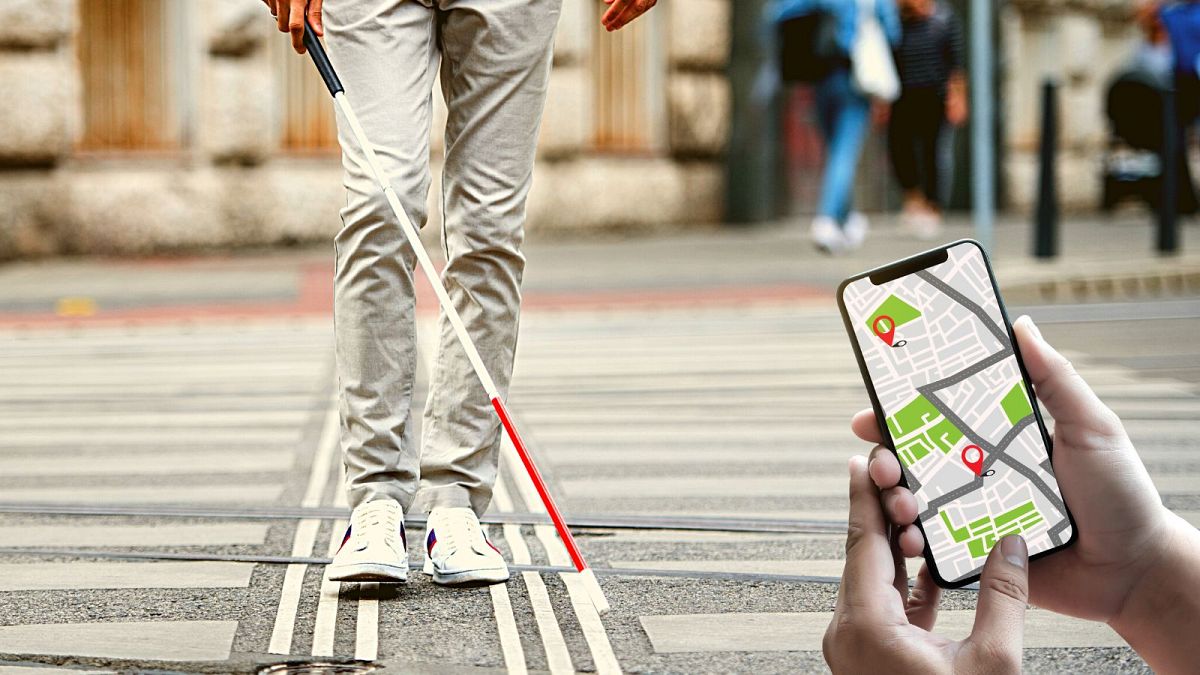
Apps for city navigation
Several AR navigation apps are currently leading the charge, each with its own strengths and weaknesses. Lazarillo, for example, excels at providing detailed descriptions of points of interest and street crossings. It’s quite strong in urban environments, offering a good level of detail about businesses and landmarks. However, its reliance on crowdsourced data can sometimes lead to inaccuracies.
Blindsquare is another popular choice, praised for its ability to announce streets, intersections, and nearby businesses with impressive accuracy. It leverages OpenStreetMap data, which is often more up-to-date than other mapping solutions. But it can be a bit overwhelming for new users due to its complex interface and the sheer amount of information it provides. The learning curve is definitely there.
Seeing AI, developed by Microsoft, is a versatile app that includes navigation features alongside its object recognition capabilities. It’s incredibly useful for reading short text, identifying products, and describing scenes. While its navigation isn’t as sophisticated as Lazarillo or Blindsquare, it's a solid all-around option, especially for those already within the Microsoft ecosystem. It feels more polished, but less specialized.
These apps often fail in the real world. Crowds confuse the sensors, and construction sites change too fast for the software to keep up. If the lighting is bad, the camera is basically blind. We need better hardware before these are 100% reliable.
Beyond basic object labels
Object recognition technology has made huge strides in recent years, and this is directly benefiting people with visual impairments. Apps like Envision AI and Microsoft Seeing AI are at the forefront, moving beyond simply labeling objects to providing more nuanced descriptions. Identifying a 'chair' is useful, but understanding what kind of chair—office chair, armchair, rocking chair—is far more helpful.
The improvements in AI models are driving this progress. Newer models are able to identify complex scenes with greater accuracy and speed, thanks to larger datasets and more sophisticated algorithms. This means apps can now describe a room’s layout, identify different types of produce in a grocery store, and even recognize specific brands. It’s about providing a more complete picture of the surrounding environment.
However, these apps still struggle with certain situations. Distinguishing between similar-looking objects—different shades of green, for instance—can be challenging. Recognizing handwritten text remains a problem. And understanding context is crucial; an app might identify a banana, but not understand that it's on a table, or being offered to the user. These are areas where further development is needed.
The Rise of Spatial Audio and Haptic Feedback
Augmented reality isn’t just about what you see; it’s about how you experience the world. Spatial audio and haptic feedback are becoming increasingly important components of mobile apps for visual impairments, offering alternative ways to perceive information. Spatial audio creates a sense of direction and distance, allowing users to 'hear' where objects are located. Imagine hearing a car approaching from the left, even if you can’t see it.
Haptic feedback—vibrations—can be used to convey information about obstacles, textures, or even the shape of objects. A gentle vibration might indicate a nearby wall, while a more complex pattern could represent the contours of a building. This moves beyond simple visual cues, creating a more immersive and intuitive experience.
There are limitations, of course. Spatial audio can be difficult to implement effectively, and its effectiveness depends on the quality of the headphones or speakers. Accessibility concerns exist for people with hearing impairments; relying solely on audio cues isn’t sufficient. Haptic feedback can also be subtle and easily missed, especially in noisy environments. It's a good addition, but not a replacement for other forms of information.
Predictions for 2026
By 2026, I anticipate significant advancements in both AR navigation and object recognition apps. We’ll likely see greater integration with smart glasses, offering a more seamless and hands-free experience. While bulky headsets aren’t likely to become mainstream, more discreet and stylish smart glasses could gain traction. The form factor will be key.
AI models will undoubtedly become even more accurate and efficient, thanks to continued research and development. This will lead to improved object recognition, better scene understanding, and more reliable navigation. Expect to see apps that can handle more complex and nuanced situations, like identifying specific products on a shelf or understanding the layout of a crowded room. Faster processing speeds are also likely.
Indoor navigation will be a major focus. Currently, most AR navigation apps struggle indoors, where GPS signals are weak or unavailable. Expect to see apps that leverage technologies like Wi-Fi triangulation, Bluetooth beacons, and visual SLAM (Simultaneous Localization and Mapping) to provide accurate indoor guidance. Personalized assistance, tailored to individual needs and preferences, will also become more common.
Standout Apps: Worth a Closer Look
While Lazarillo, Blindsquare, and Seeing AI are well-established players, several other apps are pushing the boundaries of what’s possible. Ariadne GPS is a particularly interesting option, focusing specifically on outdoor navigation with highly detailed voice guidance. It’s designed for users who are comfortable with map-based navigation and want a high level of control.
RightHear is another standout, specializing in indoor navigation for businesses and public spaces. It works by installing Bluetooth beacons throughout a building, allowing the app to provide precise location information. This is incredibly useful for navigating shopping malls, museums, and other large indoor environments. It's a good example of a specialized solution.
Be My Eyes takes a different approach, connecting users with visual impairments to sighted volunteers via live video chat. While not strictly an AR app, it provides on-demand assistance for a wide range of tasks, from reading labels to navigating unfamiliar environments. It's a great example of how technology can foster human connection and provide personalized support. It feels more like a support network than a traditional app.
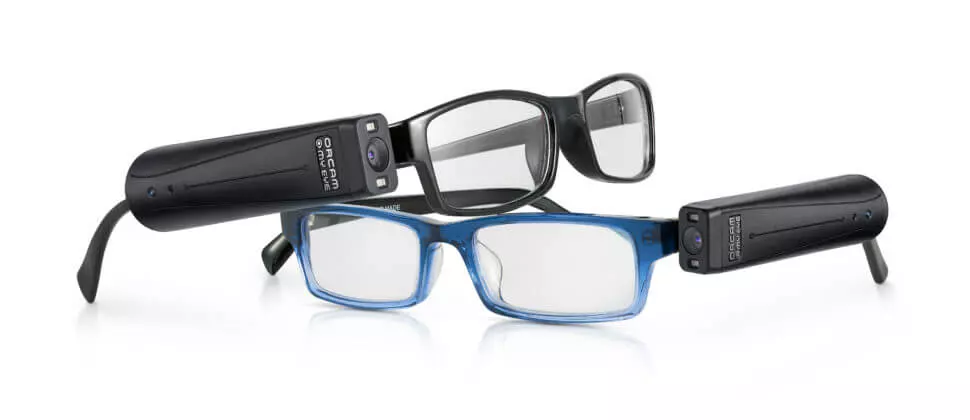
Finally, Orcam MyEye is a wearable device that attaches to glasses and instantly reads text, recognizes faces, and identifies objects. It’s a more expensive option, but it offers a level of independence that’s hard to match with smartphone-based apps. It's a different category, but worth considering for those who need a constant, hands-free solution.
No comments yet. Be the first to share your thoughts!