
What assistive technology actually does
Assistive technology is not a single gadget but an umbrella term for products, systems, and services that help people with disabilities maintain or improve their daily functioning. The World Health Organization defines it broadly to include everything from low-tech solutions, like adapted utensils, to high-tech software that converts speech to text. This definition ensures that independence is supported across a wide spectrum of needs, rather than focusing solely on expensive medical devices.
The ECTA Center, which supports early childhood technical assistance, expands this view by including "assistive technology services." These are the actions that help a person select, acquire, or use the device itself. In practice, this means that buying a screen reader is only half the battle; the setup, training, and ongoing support are what truly enable independence. Without these services, even the most advanced hardware can remain underutilized.
Assistive products help maintain or improve the functioning of individuals with disabilities. — World Health Organization
When shopping for independence, it helps to look beyond abstract categories. Instead of searching for "disability aids," look for concrete products that solve specific friction points in your day. Whether it is a voice-activated smart home hub for mobility limitations or a high-contrast keyboard for visual impairments, the right tool removes barriers to participation. The goal is seamless integration into daily life, making the technology feel like a natural extension of your capabilities rather than a medical necessity.
Best screen readers for visual impairment
Screen readers convert on-screen text into speech or braille, acting as the primary interface for navigating digital content. Choosing the right software depends on your operating system, budget, and specific needs, such as reading emails, browsing the web, or editing documents. The following options represent the most reliable tools available in 2026, each offering distinct advantages for blind or low-vision users.
JAWS
Job Access With Speech (JAWS) has long been the industry standard for Windows users. It offers deep integration with enterprise applications and a highly customizable interface that experienced users rely on for complex workflows. While it requires a paid license, its robust support for Microsoft Office and specialized banking software makes it a staple in many professional settings. It is best suited for users who need extensive customization and work primarily within the Windows ecosystem.
NVDA
NonVisual Desktop Access (NVDA) is a free, open-source screen reader for Windows. It is widely praised for its lightweight performance and rapid updates, often matching or exceeding paid competitors in basic web navigation. Because it is free, it is an excellent entry point for students, casual users, or those on a tight budget. It supports a wide range of languages and works well with most modern browsers and applications, though it may lack some of the deep enterprise integrations found in JAWS.
VoiceOver
VoiceOver is built directly into Apple’s ecosystem, including macOS, iOS, iPadOS, and watchOS. Its seamless integration across devices means that settings, shortcuts, and preferences sync automatically, providing a consistent experience whether you are on a Mac, iPhone, or iPad. The voice quality is natural and the gestures are intuitive for those already familiar with Apple hardware. It is the most convenient choice for users who already own multiple Apple devices and want a unified experience without installing third-party software.
TalkBack
TalkBack is Android’s built-in screen reader, designed to make touchscreens accessible for blind and low-vision users. It provides voice feedback for almost every action on the device, from opening apps to navigating menus. While it may not offer the same depth of customization as desktop screen readers, it is highly optimized for mobile performance and works reliably across thousands of Android devices. It is the essential tool for Android users who need immediate, native accessibility support.
Read Aloud
For users who primarily consume text on the web or need quick access without installing heavy software, Read Aloud offers a simple browser-based solution. Available as an extension for Chrome and Firefox, it highlights text as it reads it aloud, making it easy to follow along. It is particularly useful for students reviewing articles or professionals skimming documents. While it lacks the full navigation capabilities of dedicated screen readers, it is a lightweight, accessible option for basic reading tasks.
Hardware Pairings
Screen readers work best when paired with the right hardware. A refreshable braille display provides tactile feedback for users who read braille, while a high-quality USB microphone ensures clear voice output. Ergonomic mice and trackballs can also improve navigation efficiency for low-vision users who rely on mouse control alongside screen reader commands.


As an Amazon Associate, we may earn from qualifying purchases.
One-handed keyboards for limited mobility
Standard QWERTY layouts require two hands to navigate efficiently, which can be frustrating for users with limited hand mobility or those who rely on assistive technology for daily tasks. One-handed keyboards solve this by compressing the full keyboard layout into a single, compact device. These tools allow users to type quickly and accurately without needing fine motor control across multiple fingers or both hands.
When selecting a one-handed keyboard, look for features like adjustable key spacing, programmable macros, and durable construction. Many models offer ergonomic designs that reduce strain on the wrist and forearm, making them suitable for extended use. Connectivity options like Bluetooth or USB ensure compatibility with various devices, from desktops to tablets.
The following table compares key features of top one-handed keyboards to help you choose the right tool for your needs.
| Product | Layout Type | Connectivity | Price Range |
|---|---|---|---|
| Kinesis Freestyle Edge Red | Split, one-handed mode | Bluetooth/USB | $150-$200 |
| Goldtouch V2 Adjustable | Adjustable split | USB | $100-$150 |
| Logitech K380 | Compact, multi-device | Bluetooth | $30-$50 |
| Microsoft Sculpt Ergonomic | Split, ergonomic | Bluetooth/USB | $50-$70 |
For those who need a more specialized solution, consider dedicated one-handed devices like the Kinesis Freestyle Edge, which offers a split design that can be used with one hand. These keyboards often include programmable keys to further customize the typing experience. If you are looking for a more budget-friendly option, the Logitech K380 provides a compact, portable solution that works well with multiple devices.


As an Amazon Associate, we may earn from qualifying purchases.
speech-to-text software for hands-free input
Speech-to-text software lets you dictate documents, emails, and messages using your voice. For people with motor impairments or repetitive strain injuries, this technology removes the need for precise keyboarding or mouse control. It acts as a bridge, turning spoken words into digital text with high accuracy.
When choosing a tool, look for features like voice commands for formatting (bold, italic, new paragraph) and offline mode for privacy. The best options integrate seamlessly with your existing operating system, ensuring you can dictate anywhere without switching apps.
top picks for 2026
We evaluated the leading speech-to-text engines based on accuracy, customization, and accessibility features. These products represent the current standard for hands-free input.
![Dragon Professional 16.0 Speech Dictation and Voice Recognition Software [PC Download]](https://m.media-amazon.com/images/I/71wQ93kHkxL._AC_UY654_QL65_.jpg)
As an Amazon Associate, we may earn from qualifying purchases.
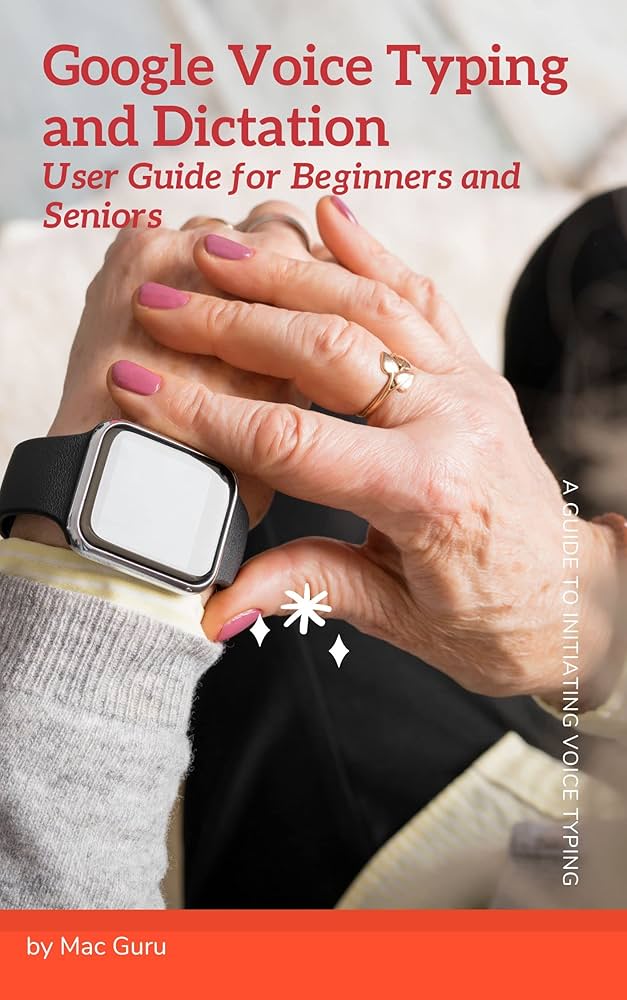
Dragon Professional remains the gold standard for users who need high precision across multiple applications. It learns your voice over time and allows for complex voice commands to control your computer. Google Docs and Apple Dictation are excellent free alternatives for basic needs, offering reliable performance for everyday tasks without additional cost.
How to choose the right assistive tech
Selecting assistive technology requires matching specific disability needs with practical features. The goal is independence, not just owning a device. A structured approach helps avoid costly mistakes and ensures the tool integrates into daily life.
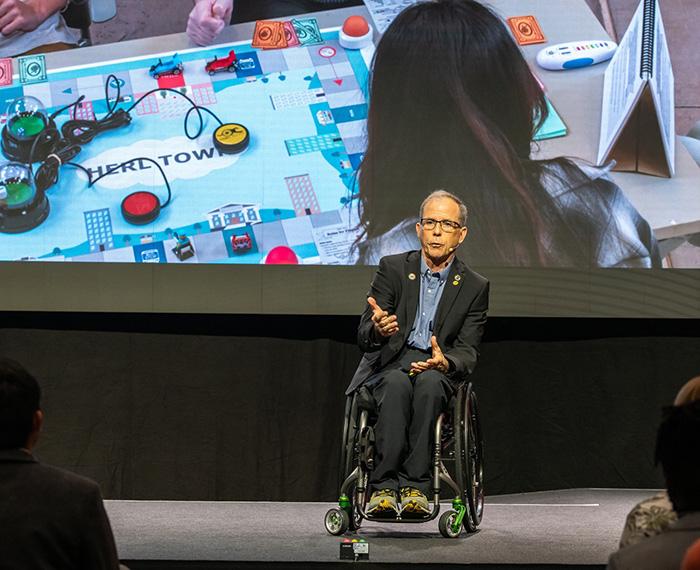
Start by listing the exact tasks that are difficult. Is it reading small text, navigating stairs, or communicating verbally? Assistive technology works best when it solves a concrete problem rather than offering general convenience. Specificity prevents buying over-engineered solutions.

Ensure the technology works with your existing devices. Many modern tools connect to smartphones, tablets, or computers via Bluetooth or Wi-Fi. Verify that the assistive device supports the operating systems you already use, such as iOS, Android, or Windows, to avoid fragmentation.

Complexity can be a barrier to adoption. Look for devices with intuitive interfaces or voice controls if manual dexterity is limited. A tool that requires extensive training may end up unused. Prioritize simplicity and accessibility features built into the hardware.
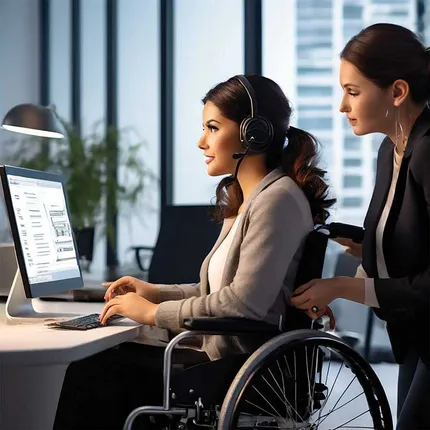
Assistive technology is an investment in independence. Compare prices across retailers, but also factor in maintenance, battery life, and warranty coverage. Government programs, such as the State Grant for Assistive Technology Program, may offer financial assistance or resources to help offset costs.


As an Amazon Associate, we may earn from qualifying purchases.
Choosing the right assistive tech is about finding the intersection of need, compatibility, and usability. By focusing on specific challenges and verifying practical fit, you can select tools that genuinely enhance independence.
Frequently asked questions about assistive technology
What are three common assistive devices?
Assistive technology spans a wide range of tools designed to support daily independence. Common examples include mobility aids like wheelchairs, walkers, and canes, which help with movement and stability. Other widely used devices are communication boards for non-verbal individuals and screen readers that convert text to speech for those with visual impairments. These products address specific physical or sensory challenges to improve quality of life.
What are the 5 P's of assistive technology?
The World Health Organization outlines five interconnected areas essential for building an effective assistive technology ecosystem. These five P's are people, products, policies, provision, and personnel. This framework ensures that technology is not just available but is also accessible, affordable, and supported by trained professionals and appropriate regulations. It serves as a guide for governments and organizations to create inclusive environments.
What is the difference between assistive technology and adaptive equipment?
While often used interchangeably, assistive technology is the broader umbrella term. It includes any product, system, or service used to maintain or improve the functioning of individuals with disabilities. Adaptive equipment is a subset of this, typically referring to physical modifications made to environments or objects, such as grab bars in bathrooms or specialized utensils. All adaptive equipment is assistive technology, but not all assistive technology involves physical adaptation.
No comments yet. Be the first to share your thoughts!