

What is assistive technology?
Assistive technology (AT) is not a single gadget or a niche medical device. It is an umbrella term covering any item, equipment, software, or product system used to increase, maintain, or improve the functional capabilities of individuals with disabilities. According to the World Health Organization (WHO), assistive products help maintain or improve an individual's functioning, bridging the gap between personal capacity and environmental demands.
The Assistive Technology Industry Association (ATIA) defines it broadly: any item, piece of equipment, software program, or product system that is used to increase, maintain, or improve the functional capabilities of individuals with disabilities. This definition explicitly includes both hardware and software, ensuring that digital tools are recognized alongside physical aids.
This scope means assistive technology ranges from low-tech solutions like built-up utensils or communication boards to high-tech innovations such as screen readers, voice recognition software, and adaptive keyboards. In this guide, we focus on the digital and physical tools that enable independence in daily tasks, from communication and mobility to computer access and home management.
Best screen readers for visual needs
Screen readers convert digital text into speech or braille output, allowing users with visual impairments to navigate websites, apps, and documents. Choosing the right software depends on your operating system, budget, and specific accessibility requirements. The following options represent the most reliable tools available for 2026.
NVDA
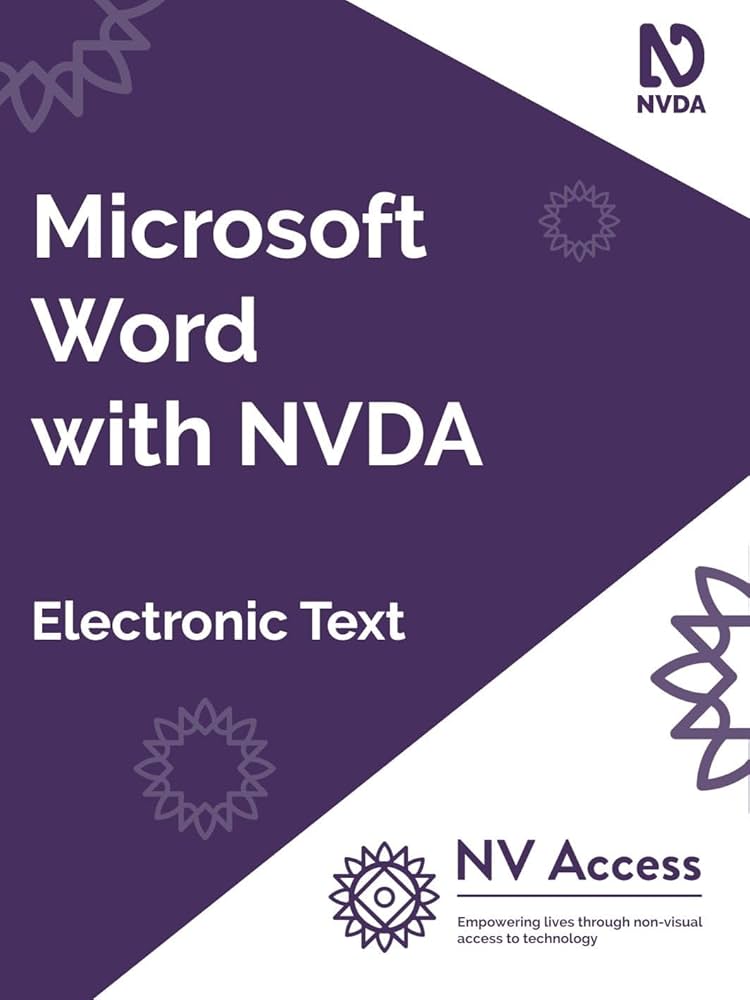
NonVisual Desktop Access (NVDA) is a free, open-source screen reader for Windows. It is widely regarded as the best choice for users who need powerful accessibility features without a subscription fee. NVDA supports a vast array of applications, including web browsers, office suites, and many games. Its active community ensures frequent updates and plugin support for niche software.
JAWS
Job Access With Speech (JAWS) has been the industry standard for Windows users for decades. While it requires a paid license, it offers unparalleled compatibility with legacy enterprise software and complex financial applications. JAWS is often the preferred choice in corporate environments where IT departments need standardized support and extensive training resources. Its robust scripting language allows for deep customization of the user experience.
VoiceOver
VoiceOver is Apple’s built-in screen reader, integrated seamlessly into macOS, iOS, iPadOS, and watchOS. Because it is native to the ecosystem, it offers smooth performance and consistent gestures across all Apple devices. Users benefit from tight integration with Siri and other accessibility features like Switch Control. It is the only viable option for users who rely entirely on Apple hardware for their daily workflow.
TalkBack
TalkBack is Google’s default screen reader for Android devices. It provides a straightforward interface for navigating smartphones and tablets, supporting gestures like swiping and tapping to interact with content. While it lacks some of the advanced customization options found in desktop counterparts, it is essential for Android users who need reliable accessibility on mobile devices. It works well with most major apps and services on the Google Play Store.

As an Amazon Associate, we may earn from qualifying purchases.
Best one-handed keyboards for mobility
Typing on a standard keyboard requires two hands working in tandem. For users with limited mobility, this can be a significant barrier. One-handed keyboards solve this by redistributing the entire QWERTY layout across a single surface. These devices are designed for comfort and efficiency, allowing users to type accurately with just one hand.
The key to these keyboards is intelligent key mapping. Instead of cramming all keys into a small space, they use chorded inputs or predictive text. This means pressing two or more keys simultaneously to generate a letter. It feels different at first, but it becomes fast and natural with practice. Ergonomic shapes also help, reducing strain on the wrist and forearm.
When choosing a one-handed keyboard, look for features that match your specific needs. Consider connectivity options like Bluetooth or USB. Look for customizable key layouts if you have a preferred typing style. Durability is also important, as these devices are used frequently.
The following comparison highlights top-rated options. These models are selected for their reliability, comfort, and ease of use.
| Product | Layout Type | Connectivity | Price Range |
|---|---|---|---|
| Kinesis Freestyle Edge RGB | Split, one-hand capable | Bluetooth, USB-C | $150-$200 |
| Maltron Keyboard | Ergonomic, one-hand mode | USB | $300-$500 |
| Glove80 | Split, one-hand capable | USB-C | $250-$300 |
These keyboards are not just for gamers or typists. They are essential tools for independence. They allow users to communicate, work, and learn without assistance. If you or someone you know has limited mobility, a one-handed keyboard might be the right choice.
Speech-to-text software options
Speech-to-text software converts spoken words into typed text, allowing users with motor impairments or repetitive strain injuries to compose documents, send emails, and browse the web without relying on a physical keyboard. This hands-free approach reduces physical strain and can significantly increase writing speed once the user becomes comfortable with dictation.
The accuracy of these tools depends heavily on clear audio input. While modern cloud-based engines are highly sophisticated, they still require a clean voice signal to minimize errors that would otherwise require time-consuming editing. Choosing the right microphone is just as important as selecting the software itself.
Dragon Professional
Dragon Professional by Nuance (now part of Microsoft) remains the industry standard for dedicated speech recognition. It offers high accuracy across various accents and dialects, with the ability to learn individual voice patterns over time. It includes advanced features like voice commands for controlling the computer, making it a comprehensive solution for power users who need to navigate operating systems hands-free.
Built-in Dictation (Apple & Google)
For users already in the Apple or Google ecosystems, built-in dictation offers a free, low-friction entry point. Apple’s dictation on macOS and iOS is deeply integrated into the OS, allowing seamless switching between typing and speaking. Google’s Gboard and Android dictation provide similar functionality across mobile and desktop platforms. While not as customizable as Dragon, these tools are sufficient for most everyday writing tasks and require no additional setup.
NaturalLanguage
NaturalLanguage is a popular alternative for Windows users who want a more affordable option than Dragon. It supports a wide range of languages and offers customizable voice commands. While its accuracy may not match the top-tier cloud engines in noisy environments, it provides a robust set of features for users who need reliable dictation without a steep learning curve.


As an Amazon Associate, we may earn from qualifying purchases.
How to choose the right assistive technology
Selecting the right assistive technology starts with matching the tool to your specific daily tasks, not just your diagnosis. A screen reader like JAWS or NVDA is essential for navigation, but it won't help with motor control issues that require an adaptive keyboard or switch device. Start by listing the three most frequent barriers you face in your routine, then prioritize devices that directly address those friction points.
Budget and integration are equally critical. Many assistive devices connect via Bluetooth to existing smartphones or tablets, reducing the need for expensive standalone hardware. Check if your current operating system—whether iOS, Android, or Windows—has built-in accessibility features before purchasing third-party tools. This can save money and ensure seamless compatibility with the apps you already use.
Finally, consider the support ecosystem. Government programs like the State Grant for Assistive Technology Program can help offset costs for eligible individuals, but eligibility varies by location. Before buying, verify if insurance, vocational rehabilitation services, or local non-profits offer trials or subsidies. Testing a device in your actual environment is the only way to know if it fits your life.
Frequently asked questions about assistive tech
Does insurance cover assistive technology? Medicare Part B typically covers durable medical equipment like standard wheelchairs, but it rarely pays for specialized assistive technology devices. Many private insurers follow similar guidelines, often requiring extensive documentation of medical necessity before approving coverage for items like screen readers or adaptive keyboards.
Where can I find free assistive technology resources? The Administration for Community Living (ACL) administers the State Grant for Assistive Technology Program, which helps make devices and services more accessible to individuals with disabilities. You can contact your state’s assistive technology program directly to explore loan libraries, demonstrations, and training options available in your area.
Can I use assistive technology with my current computer? Most modern assistive technology works with existing Windows or macOS systems. For example, the JAWS screen reader is compatible with most Windows PCs, and VoiceOver is built into every Mac and iPhone. You may need to purchase specific hardware, such as a braille display or ergonomic keyboard, to fully leverage these software features.
No comments yet. Be the first to share your thoughts!